 ContractorKeith
 I wanted an AI agent to search a project folder and check Homebrew without giving it permission to run any command it could dream up.
that request turned into mcp-macos-toolkit, an early-access local tool server for macOS.
what MCP means in plain english
MCP stands for Model Context Protocol. think of it as a standard plug that lets an AI application ask an outside tool to do a specific job.
without MCP, every AI app needs its own custom connection to your files, calendar, package manager, and local models. with MCP, the app can see a list of named tools with defined inputs and outputs.
that does not make every tool safe.
an MCP server can be as broad as a shell or as narrow as one button. we built this one around narrow tools, small filesystem boundaries, and write actions that stay off until the person running the server turns them on.
why we built it
macOS already has Shortcuts, Calendar, Reminders, Homebrew, Ollama, MLX, and a perfectly good filesystem. the problem was that my agent reached them through separate commands and one-off scripts.
the easy answer would have been to hand the agent a terminal and hope every command was sensible. I spend too much time around construction safety plans to call that a plan.
so the toolkit exposes specific jobs instead. it can list files inside approved folders, read bounded text, search text, inspect Homebrew, list calendars and reminders, check local model runtimes, or run an approved Shortcut.
arbitrary shell commands and arbitrary AppleScript are deliberately missing.
what it can do today
version 0.1.0 has five tool groups:
macos_*checks system information and works with allowlisted Apple Shortcutsfilesystem_*lists, reads, and searches text inside configured foldershomebrew_*checks Homebrew health and package information, with package changes behind a gateproductivity_*reads Calendar and Reminders, with new items behind a gatemodels_*inspects Ollama and MLX, and can run or convert local models when enabled
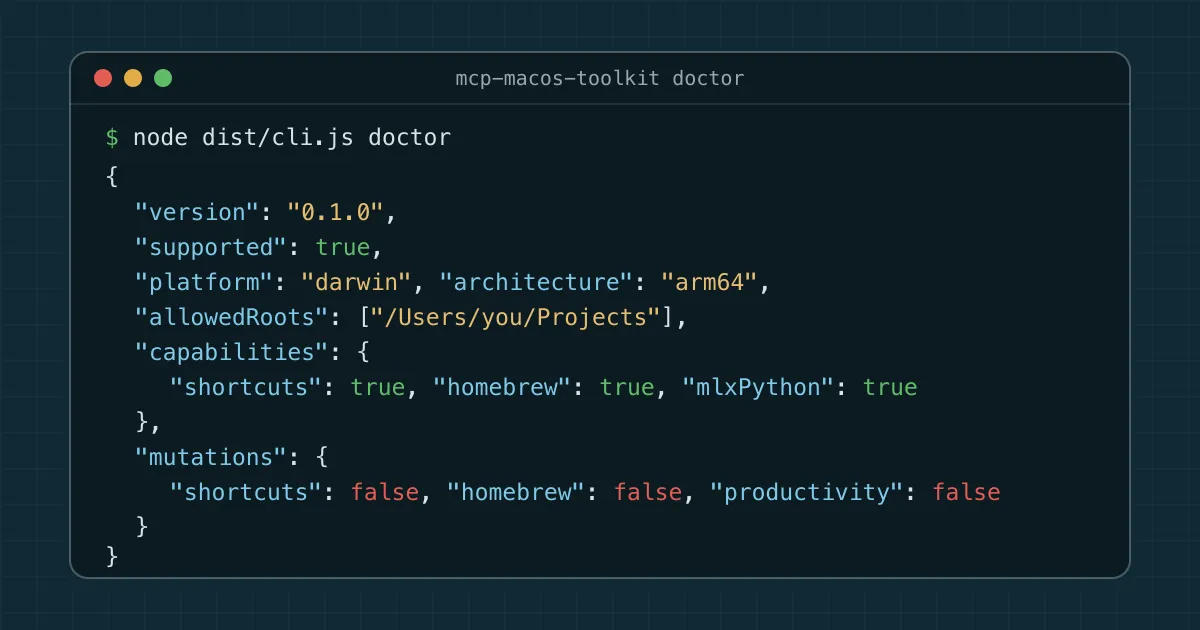
the screenshot is the real doctor output with the example path changed to /Users/you/Projects. it shows the point of the default setup: useful read capabilities are available, while shortcuts, package changes, productivity writes, and model runs are all off.
the toolkit has no hosted account and no telemetry endpoint. it runs on your Mac and talks to the MCP client over standard input and output.
local does not mean harmless. a tool that can read your files can still return private information, and a Shortcut can do far more than its friendly name suggests.
how to try it
you need an Apple Silicon Mac, Node.js 22 or newer, npm, and Git. the project is installed from its GitHub source for now. there is no promised npm package release yet.
run:
git clone https://github.com/ContractorKeith/mcp-macos-toolkit.git
cd mcp-macos-toolkit
npm ci
npm run check
npm run build
node dist/cli.js doctor
npm ci installs the exact dependency versions recorded by the project. npm run check runs formatting, code checks, tests, a build, and a smoke test. the final command prints what the toolkit can see on your Mac and which write abilities are disabled.
then point your MCP client at the built file with an absolute path:
{
  "mcpServers": {
    "macos-toolkit": {
      "command": "node",
      "args": ["/absolute/path/to/mcp-macos-toolkit/dist/cli.js"],
      "env": {
        "MCP_MACOS_ALLOWED_ROOTS": "/Users/you/Projects"
      }
    }
  }
}
the allowed root is the fence around file access. start with one small test folder, not your whole home directory.
ready-to-edit examples for Claude Desktop, Cursor, and Codex are in the repo’s examples folder.
the two-key rule for changes
read-only should be boring. changing something requires two separate signals.
first, the person starting the server enables one category with an environment variable. second, the individual MCP call includes confirm=true. without both, the server refuses the write.
for example, a Homebrew install needs MCP_MACOS_ALLOW_HOMEBREW_MUTATIONS=true at startup and confirm=true on that exact tool call. Calendar writes, Shortcut runs, local model runs, and model conversions have their own switches.
and this is still not a sandbox. the MCP client must show you the tool request clearly, macOS may ask for its own permissions, and you should review the exact package, path, event, reminder, Shortcut, or model before approving it.
useful first jobs
once the server is connected, try simple read-only requests:
find markdown files inside my allowed project folder that mention release checklists.list outdated Homebrew formulae, but do not install or upgrade anything.show the local Ollama and MLX models and tell me which runtimes are available.a developer could use the filesystem tools to find project notes without opening the rest of the Mac. a team could expose two approved Shortcuts for repeatable setup jobs. somebody experimenting with local AI could inspect downloaded models before deciding which one to run.
small boundaries. visible actions.
where feedback helps
the project is early access, so rough edges are expected. start with the README, then read the permissions guide before enabling any write action.
contributions are welcome. the contribution guide lists good first work such as permission troubleshooting, parsing tests, clearer tool descriptions, and small read-only additions.
use GitHub Issues for bugs and focused ideas. suspected security problems belong in the private path described by the security policy, not in a public issue.
I especially want feedback from people who are new to MCP. if the setup assumes something you did not know, that is a documentation bug, and I would rather fix it than pretend the instructions were obvious.